
Transfer Data from Phone to Phone with iSkysoft Phone Transfer for Mac
So many people need help with phone transfer, whether that includes transferring photos, contact information, or even text messages. It can be very frustrating when you have an iPhone and your best friend has an Android and you want to share things like music or videos. Or if you go and get a new phone and haven’t backed up all of the data from your current phone and don’t want to lose that data then this software iSkysoft Phone Transfer for Mac can help. People get new phones all the time and understand the hassle that it can be to transfer data from one device to another, and there is also a strong fear of losing precious pictures in the process. So this software could be a strong useful tool for you.
Key Features of iSkysoft Phone Transfer for Mac
Phone to Phone Transfer – This software makes it easy to use phone to phone transfer process and you will be able to easily transfer all of your contacts, calls, text messages, voicemails, calendar dates and anything else that is on your current phone onto your new phone. You can even transfer all of your favorite music with just the push of a button. How much stuff is lost usually during the process of transferring phones? That does not need to be the case with this unique and wonderful phone to phone transfer feature included in the iSkysoft Phone Transfer for Mac software. It supports to transfer data between iPhone, Android and BlackBerry easily.
Backup Phone to Mac – This feature is unique in that it provides a completely safe and secure backup from your phone to Mac. It can help you transfer for Mac and can backup your phone contacts, messages, music, pictures and so much more with just one click. Everything you transfer or backup will be in its original format so you do not have to worry about apps or picture sizes changing. It can be extremely important to backup your phone to your mac because in the incidence of your phone getting lost you will already have the information you need stored on your computer to be uploaded to a new phone.
Restore from Backups – How amazing is it that you can restore your Android or iPhone or any other devices date in just one click if you have backed up your data by BlackBerry Desktop Suit for Mac. This specific phone transfer tool can restore date from your BlackBerry backup. If you have music that you have backed up on iTunes of iCloud then you need this in your life. Not only can you retrieve music, but you can also retrieve photos, videos, and messages from iTunes backup to Android or another iOS device that you might own. You can also retrieve date from your iCloud backup system to Android or other devices you own.
So How Exactly Do You Use iSkysoft Phone Transfer to Make Your Life Easier?
Part 1. How to Transfer Contacts, Photos, Music, Text Messages, etc. from Phone to Phone
These are the steps that you will have to go through
Step 1 – Launch Phone Transfer for Mac
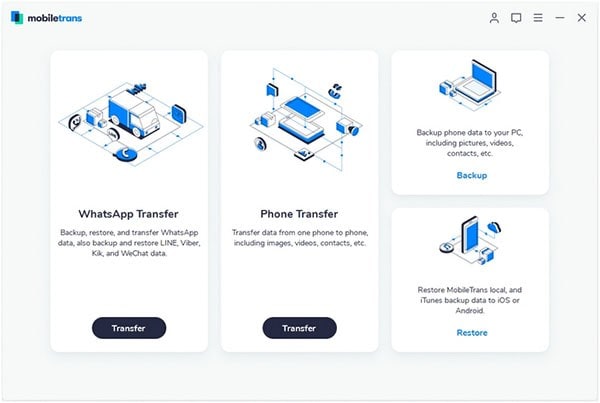
Launch Phone Transfer for Mac by downloading the necessary phone transfer program file. Click the file and then drag the icon into your “Applications” and then double click the program icon to launch it.
Step 2 – Connect Devices to Mac and Select Files
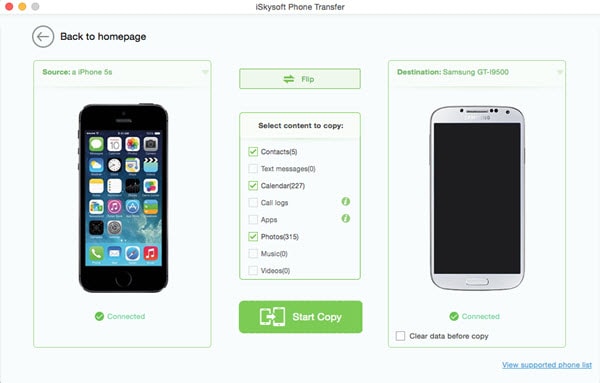
Now you need to connect your different devices to Mac using USB cables and when connecting them you need to authorize your phone to Mac and then finish up that process. Then click on the “Phone to Phone Transfer” tab that appears which will take you to the transfer window. There you will be able to see your two different devices and the source device date.
Step 3 – Start Phone to Phone Transfer on Mac
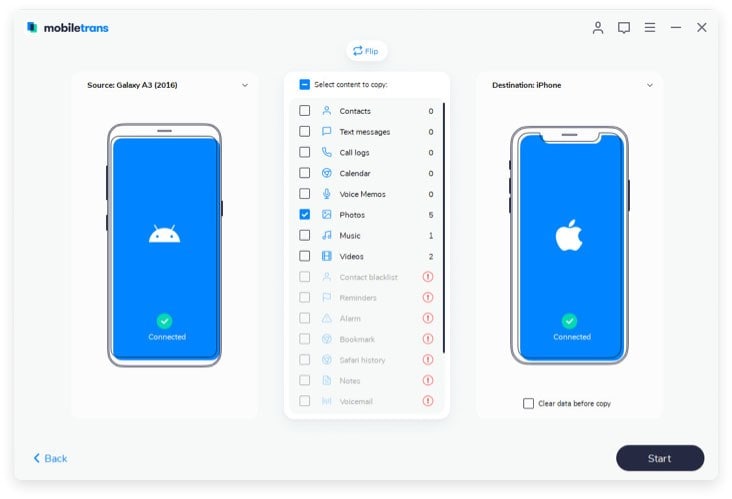
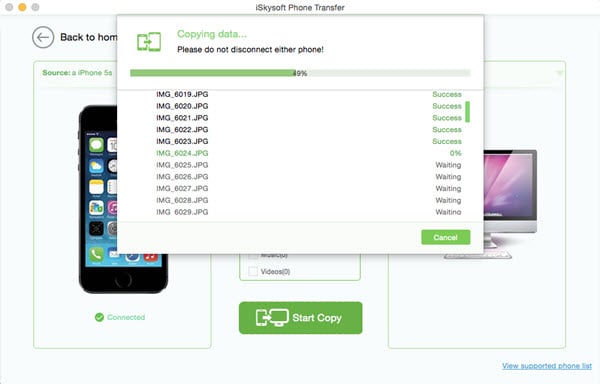
Now you need to check the files like your Contacts, Text Messages, Videos, Photos, Apps, Music and any other things on your current phone and click the “Start Copy” button that will begin the phone transfer for Mac and will start transferring your files securely.
Part 2. How to Backup Android and iDevice Data to Mac
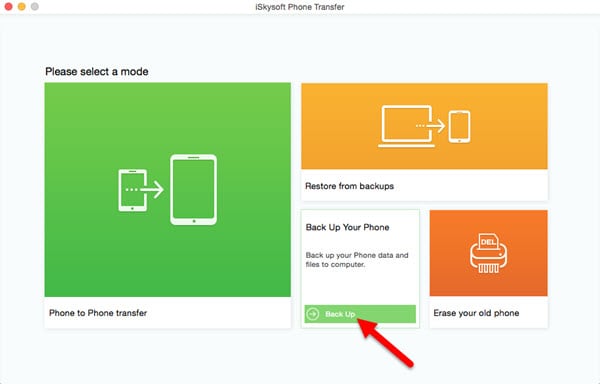
Step 1. Run the iSkysoft Phone Transfer for Mac. Then click the “Back Up Your Phone” tab to go to the backup window.
Step 2. Now it’s time to connect your phone or tablet to your Mac using a USB cable. Now you will see your phone date shown in the programs interface.

Step 3. Check the Data You Want and click “Start Copy” to make sure you backup your phone data to your Mac. Later on you will be able to get your phone date on your Mac.
Part 3. How to Restore Phone Data
Step 1. Restore Data from iCloud to Android
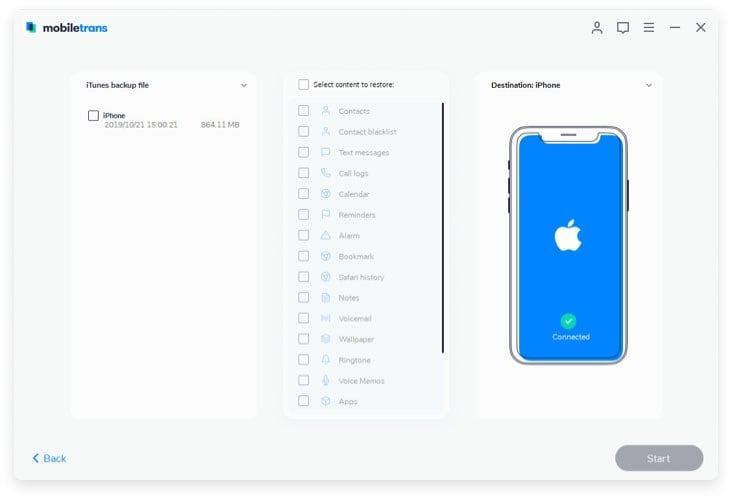
Open the Restore Window. Then start the transfer to your Mac software and connect your Android or other iOS device to your Mac. Click “Restore from backups” and choose “from iCloud backup file”.

Step 2. Log into your iCloud Account
Log in using your personal apple ID and password.
Step 3. Restore Data from iCloud Backup
Finally check to make sure that the content you want is there and lick “Start Copy” to transfer date from your iCloud to your Android or iOS devices.
Everybody could benefit from having this phone transfer software in his or her life because transferring data from one device to another on your own in a giant pain and a waste of your time and energy. Let this software do that hard work for you and give you peace of mind knowing that your data is safe and secure and will be transferred quickly and efficiently from one device to another.
People need to know and understand the secret about this software and download it immediately to make sure that precious information like text messages, voicemails, pictures, music, apps and more do not get lost during the transfer process which can happen quite frequently especially when you are attempting to transfer data on your own. With iSkysoft Phone Transfer for Mac you can easily get the information and data you want and need from one place to another and won’t be worried about the quality of the transfer because you will know that you can trust this software. Order your copy of this software today because you never know when you might need it!


Leave a Reply