• About Us
  • Contact Me
  • Review Request
  • Guest Post
  • iPhone 14 WALLPAPER
    • iPhone XR and iPhone XS Wallpapers
  • Store
  • Gambling
  • iPhone 15 Wallpapers

iPhonecaptain | iOS 17 Tips, Jailbreak Tweaks and App Reviews

"Bringing the Best For Apple Devices Daily"

A2Hosting

  • Home
  • iOS 16 Wallpaper Downloads
    • macOS Ventura Wallpaper Downloads Here
      • MacOS Wallpapers 2022
      • 5K iMac Wallpapers Stock
    • iOS 10 Wallpaper
    • iOS 9 Wallpaper
    • iOS 8 Stock Wallpaper
    • iPhone 7 Wallpaper
      • Super Mario wallpapers for iPhone
      • iPhone 6 Plus HD Wallpaper
      • iPad Air or iPad Mini Retina HD Wallpaper
      • Yosemite Wallpaper
      • iOS 7 Wallpaper
      • Wallpaper New iPad 3
      • iPhone 5 Wallpapers
    • iPhone 6 Wallpapers
  • iPSW Firmware
    • iOS 8 iPSW Downloads
  • Top Cydia Sources 2017
    • Top Cydia Repo 2016
    • Cydia Sources 2014
    • Sources 2013
    • Cydia Sources 2012-13
  • Free Cydia Tweaks
    • Winterboard Themes
    • Favorite Tweaks
    • Top iOS 8 Tweaks
  • App Reviews
    • PRODUCT REVIEWS
    • Review Request
  • iPhone Tips
    • Giveaway
  • iPA Library
    • Emulators
    • iOS 10 Hacks
  • Jailbreak Download
You are here: Home / App news / Setup iTunes Allowances: Limit Childs iTunes Spending[Video]

Setup iTunes Allowances: Limit Childs iTunes Spending[Video]

December 26, 2012 By Mitch Stevens Leave a Comment

  • Facebook
  • Twitter
  • Pinterest
  • LinkedIn
  • Reddit
  • Comments
  • Subscribe

ituneslimit

Balance App Spending And Kids


Apple makes it very a simple and fast to buy apps, music, and other entertainment items for iOS devices.  However, parents usually pay the price for these luxuries.  What I mean is, most parents purchase the new device, set it up and hand it over to their children.  Now who’s being irresponsible here.  Anyway, there is sorta a middle ground for parents and their children to meet when it comes to buying items in the iTunes store.  Their are a few different strategies parents can take to prevent high credit card bills or the shock of an outrageous credit card bill in the mail.  We all know getting refunds from Apple is like pulling teeth.  However, you did purchase these applications willingly.  You may not have purchased them directly but you gave your child an iOS device with your information and passwords.  That’s the same as saying you bought it in Apple’s eyes.  Well I have good news their are a few ways to prevent this from happening.


Set Allowances 

This is the best way overall and to me makes thew most sense.  It gives the user the ability to buy a set number of applications.  Not only does it keep down credit card bills but also teaches your child the meaning of money.  They may think before hiotting that buy button so often now.  They may stop and think do I really want this application.  Setting allowances can be a strategy both the parent and child have a say.  They can come to an agreement beforehand.
IMG_1326 IMG_1327

How to Set iTunes Allowances

  1. Open iTunes and sign in to your account.  Be sure all the information is correct including the credit card numbers.
  2. Click the “Home” button in the menu across the top of the screen.
  3. Click on “Buy iTunes gift” in the right side bar of the page.
  4. Scroll down the page until you see “Set Up Allowance”  Click on it.
  5. Once the page opens you will need to enter all the specified information including how much you wish to allot the user you are setting up allowance for now.
  6. Follow the on screen instructions to complete the set up.


You can view the allowances and manage them at any time by signing into your account.  You can change the amount, suspend, and create new allowances from here anytime.
IMG_1328 IMG_1329

Enable Restrictions

The child may be too young all together to purchase apps.  What can you do?  You can disable purchases altogether.  In order to disable iTunes store purchases complete the following.

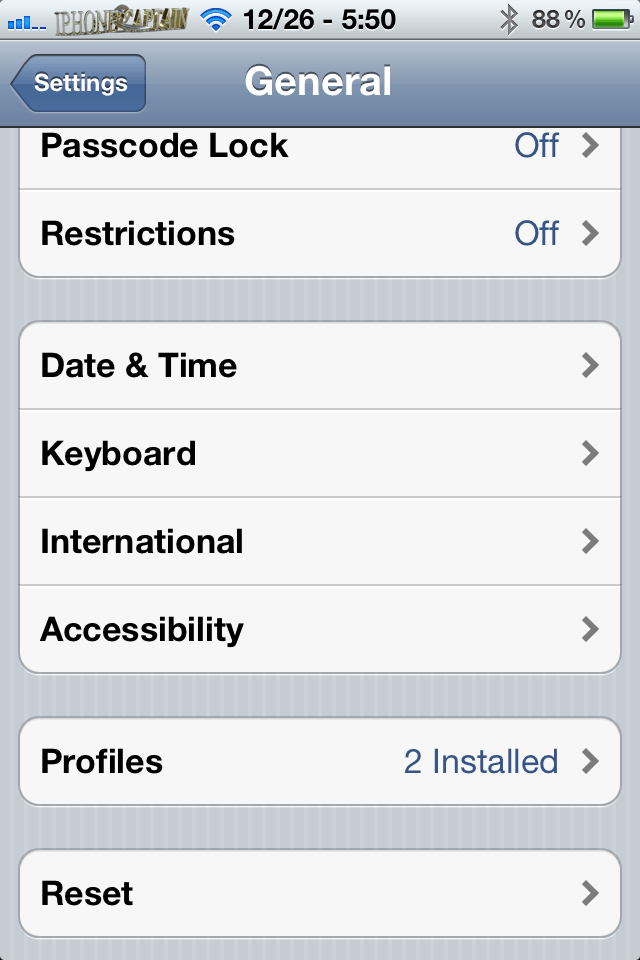
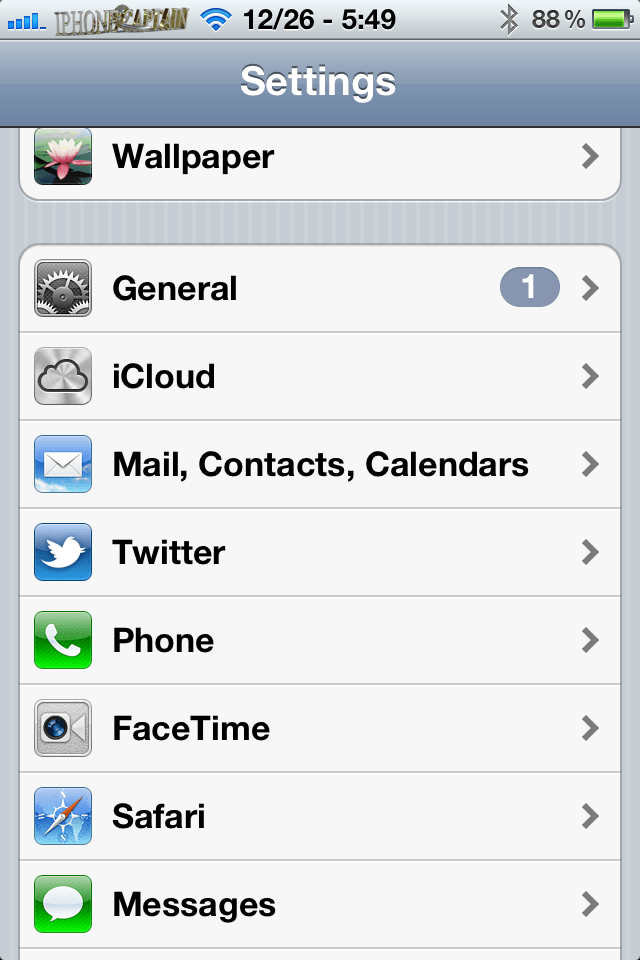
  1. Open Settings > General > Restrictions
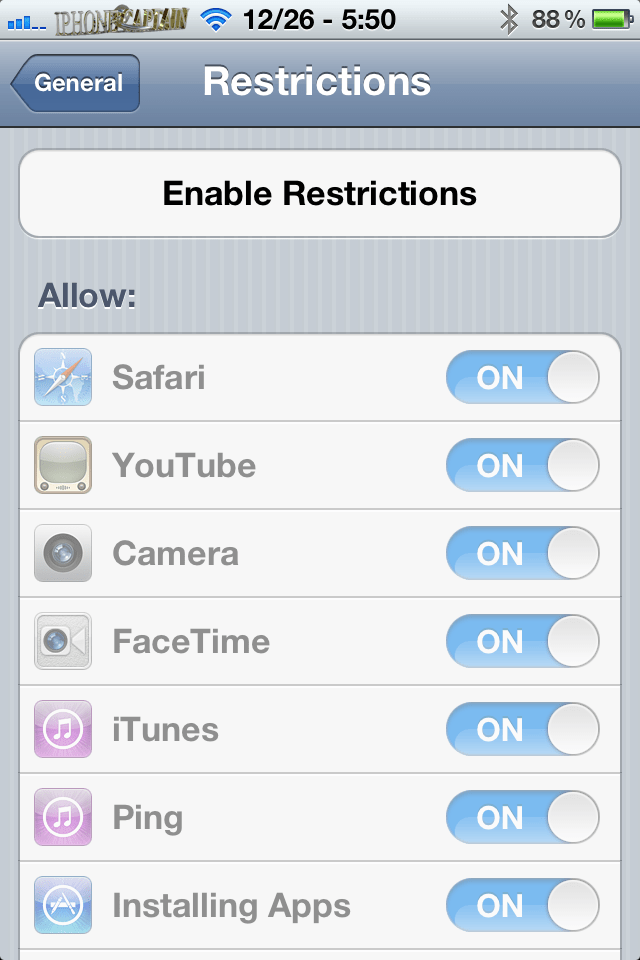
  2. Tap Enable Restrictions
  3. Here you can set many other things including app tore restrictions.
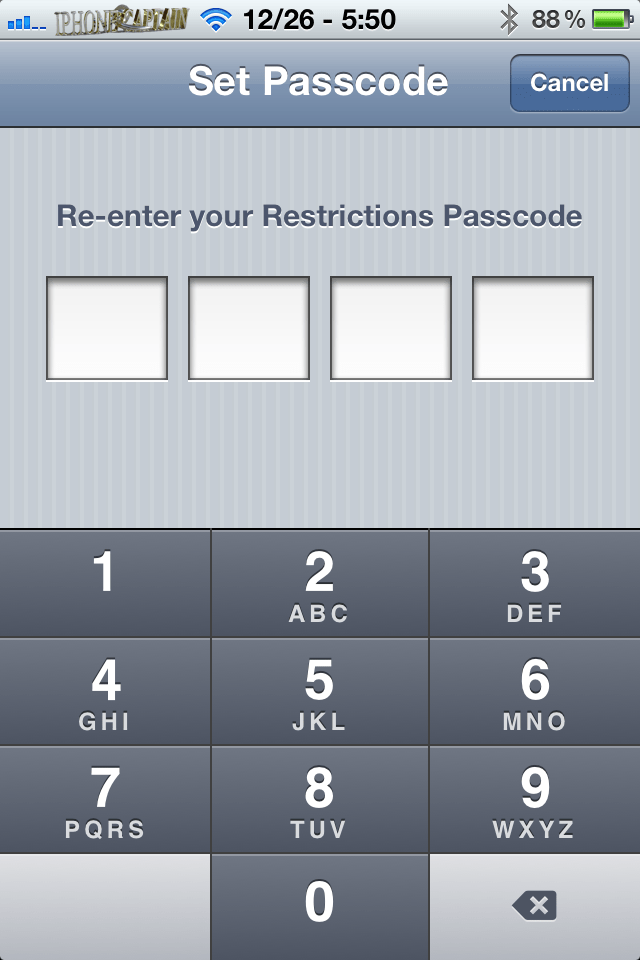
  4. Select a four digit code -keep in mind this code isn’t related to lockscreen code.  Once the code has been selected you may restrict a number of different feature’s such as FaceTime, installing/deleting apps, and more.
  5. Once the passcode has been set it must be entered to purchase apps or anything else in iTunes store.


Use one of the methods above to control spending in the app store.  Parents may rest better knowing their credit card limits aren’t being exceeded due to app purchases from their child’s new iOS device.  By taking a little time to plan and enable restrictions on their child’s device, everybody is happy.

Watch the video below for a look at how to set up allowances.  Comments are always welcome.

  • Facebook
  • Twitter
  • Pinterest
  • LinkedIn
  • Reddit
  • Comments
  • Subscribe

Filed Under: App news, Mac Tips, News, Tips

Latest Post

  • iOS 16 Brings Battery Drain Plus Tips to Improve Battery Life After iOS 16

    iOS 16 Brings Battery Drain Plus Tips to Improve Battery Life After iOS 16
  • #ToonMe Best Caricature Creator: Person or Pet Into Cartoon 2022

    #ToonMe Best Caricature Creator: Person or Pet Into Cartoon 2022
  • iOS 16 Features Exclusive Only to Newest iOS Devices

    iOS 16 Features Exclusive Only to Newest iOS Devices
  • 9 Extra Ways to Hang Up a Call on Your iPhone 2022

    9 Extra Ways to Hang Up a Call on Your iPhone 2022
  • Favorite iOS 16 Wallpapers iPhone 14 or iPhone 14 Plus

    Favorite iOS 16 Wallpapers iPhone 14 or iPhone 14 Plus

Stay Up To Date On All The Latest iOS News!!!

Never miss out just because you can't be here everyday... Join us for the latest and most popular news. Get our best delivered in your inbox with our latest and best guides and How to's.

About Mitch Stevens

Blogger, Youtube Content Creator and Online instructor of courses relating to Youtube, Facebook, and Blogging, Learn to build a blog from the ground up using Wordpress plus others.  Mitch has over 20 years experience teaching in the public schools.  He was forced to quit teaching in public schools around 2010 due to health issues and started iPhonecaptain.  Try one of the courses and start a new career today.  Feel free to reach out to Mitch for help relating to making money online also. One of his
Best Sellers is titled, How to earn $4000 Monthly Making Youtube Videos grab a copy and start your journey today.

Leave a Reply Cancel reply

Your email address will not be published. Required fields are marked *

Search The Site

SiteGround

Ad - Web Hosting from SiteGround - Crafted for easy site management. Click to learn more.

RSS Follow Our RSS

  • iOS 26: Adaptive Power, Clear Icons and More – Key Features Explained

Archives

RETURN TO TOP OF PAGE   Privacy Policy

Copyright © 2026 iphonecaptain Developed by Bytesflow Technologies