• About Us
  • Contact Me
  • Review Request
  • Guest Post
  • iPhone 14 WALLPAPER
    • iPhone XR and iPhone XS Wallpapers
  • Store
  • Gambling
  • iPhone 15 Wallpapers

iPhonecaptain | iOS 17 Tips, Jailbreak Tweaks and App Reviews

"Bringing the Best For Apple Devices Daily"

A2Hosting

  • Home
  • iOS 16 Wallpaper Downloads
    • macOS Ventura Wallpaper Downloads Here
      • MacOS Wallpapers 2022
      • 5K iMac Wallpapers Stock
    • iOS 10 Wallpaper
    • iOS 9 Wallpaper
    • iOS 8 Stock Wallpaper
    • iPhone 7 Wallpaper
      • Super Mario wallpapers for iPhone
      • iPhone 6 Plus HD Wallpaper
      • iPad Air or iPad Mini Retina HD Wallpaper
      • Yosemite Wallpaper
      • iOS 7 Wallpaper
      • Wallpaper New iPad 3
      • iPhone 5 Wallpapers
    • iPhone 6 Wallpapers
  • iPSW Firmware
    • iOS 8 iPSW Downloads
  • Top Cydia Sources 2017
    • Top Cydia Repo 2016
    • Cydia Sources 2014
    • Sources 2013
    • Cydia Sources 2012-13
  • Free Cydia Tweaks
    • Winterboard Themes
    • Favorite Tweaks
    • Top iOS 8 Tweaks
  • App Reviews
    • PRODUCT REVIEWS
    • Review Request
  • iPhone Tips
    • Giveaway
  • iPA Library
    • Emulators
    • iOS 10 Hacks
  • Jailbreak Download
You are here: Home / App news / How to play Nintendo DS games on your iPhone and iPad?

How to play Nintendo DS games on your iPhone and iPad?

April 15, 2014 By Mitch Stevens 1 Comment

  • Facebook
  • Twitter
  • Pinterest
  • LinkedIn
  • Reddit
  • Comments
  • Subscribe

20140415-220709.jpg

Think the Nintendo DS is too outdated for your taste? Yet that memories of Mario, Sonic and Pokemon are haunting you always? Well now there is a way to play those classic Nintendo DS games on your iPhone or iPad. And the best part is that it works even without jailbreaking your device, yeah! Making this miracle possible is an emulator called NDS4iOS.

Note: The app might link to or promote the use of pirated softwares and ROMs but we at iPhone Captain do not endorse it in anyway and have a strict policy against piracy. It is advised that you use only the ripped copies of legally owned ROMS, for use with this app.


A. Installing NDS4iOS on jailbroken iOS devices

This is the easier way but works only with jailbroken iPhones, iPod Touches and iPads. If your device is not jailbroken, please skip over to the next section. If the term ‘Jailbreak’ doesn’t make sense to you or you need to know more about it, please read our article on  What is Jailbreaking?

IMG_1949

Step 1 – Head over to AngelXWind Downloads page using Safari on your device.

Step 2 – Now you can choose one of the following methods. The first one is a bit lengthy but you will be able to update to newer versions when they are released. While the second method is quicker and easier but ignores updates. So choose the best one for you.

  • Method 1 – You’ll see a tutorial on the website for jailbroken devices, follow it! viz. Add the source http://cydia.angelxwind.net/ to Cydia> search and find NDS4iOS > Click on Install and confirm.
  • Method 2 – Ignore their tutorial > Scroll down to the section for non-jailbroken devices > Click on the button saying “Install NDS4IOS (Stable) via OTA” > It will automatically install the app to your home-screen


B. Installing NDS4iOS on iPhone or iPad without jailbreaking

Step 1 – Head over to AngelXWind Downloads page using Safari on your device

20140415-220719.jpg
Step 2 – Scroll down to the section for non-jailbroken devices > Click on the button “Install NDS4IOS (Stable) via OTA” > Click Install on the popup.
Step 3 – It will take you to the home-screen and try to install an icon. It will fail with a popup error and the icon will be greyed out.
Step 4 – Now goto the Settings > General > Date and Time > Turn off the toggle for ‘Set Automatically‘ option > Change the date to Feb 8, 2014

20140415-220726.jpg
Step 5 – Go back to the home-screen and tap on the error-struck icon > The installation will now complete successfully
Step 6 – You can now return to the Settings app and correct the date.


C. Getting the Nintendo DS ROMs into iPhone or iPad
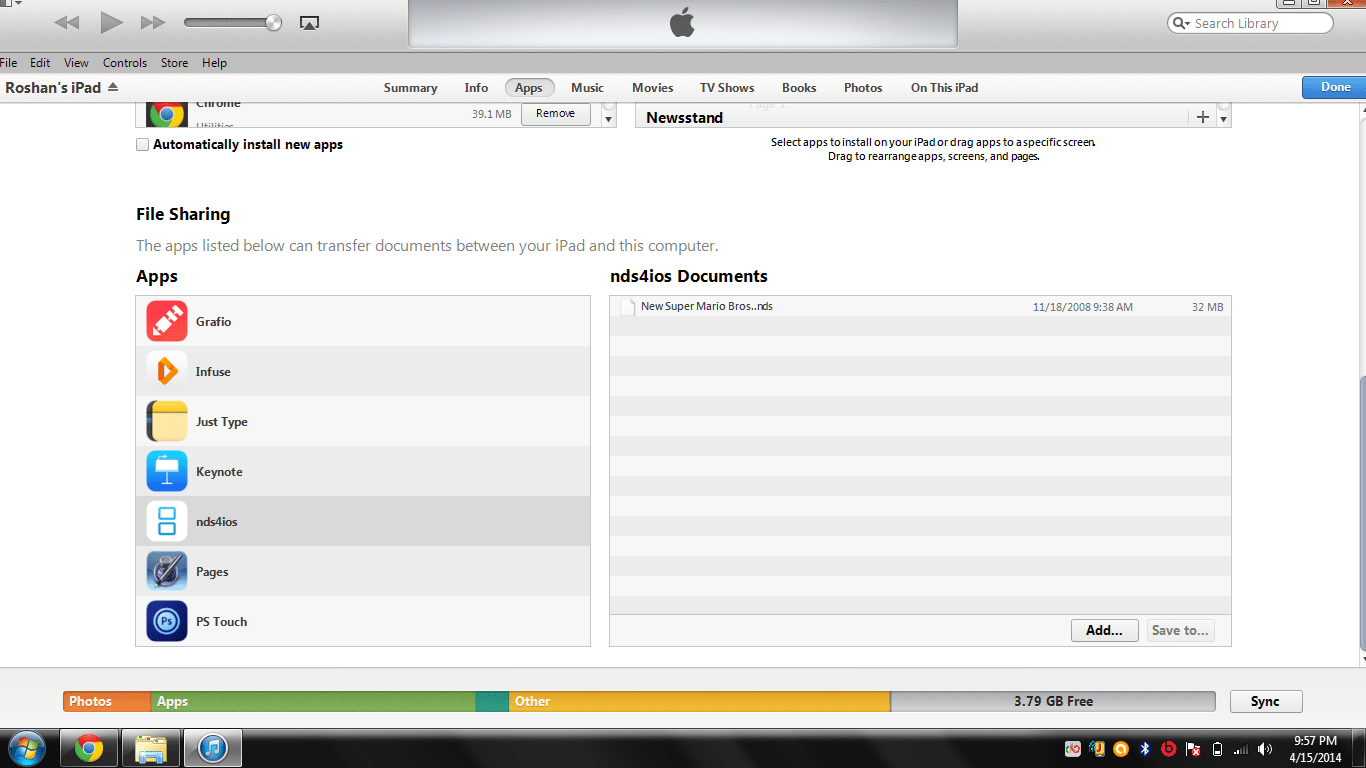
Untitled

As already mentioned, please donot use pirated ROMs but obtain a legal one, instead.

1. If from a website, you can download it via Safari and click on “Open in” option and select NDS4iOS from the choices.
2. If it is on your PC or Mac, you can connect your device to it and use iTunes file sharing to put ROMs into the app.
3. In either case, you can also upload the file to Dropbox and sync your ROM library to the app.


D. Playing the imported Nintendo DS games

20140415-220804.jpg

All your uploaded ROMs will start appearing as a list in the welcome screen. Select one you like and dive right into it.

And as for something extra, the settings menu in the app’s side-bar gives quite alot of preferences like Frame rates, sound toggles, control pad styles and orientation.

20140415-220811.jpg


So that’s how you play Nintendo DS games on your iPhone or iPad even without jailbreaking your device. Please note that this method uses a glitch in iOS which makes ‘Over the Air‘ installations possible. So download NDS4iOS now and enjoy your ROMs before Apple patches it up in their next update.

  • Facebook
  • Twitter
  • Pinterest
  • LinkedIn
  • Reddit
  • Comments
  • Subscribe

Filed Under: App news, App Reviews, Cydia Apps, Cydia news, Cydia Tweaks, Favorite Apps, favorite cydia apps, Favorite Cydia Tweak, free iOS apps, iOS 7, iOS 7 Cydia Tweak, iOS Game Hack, iOS Tips & Tricks, IPHONE 5, iphone how to, iphone Tips, iPhone Tips & Tricks, Jailbreak Tutorials, Tips, Top Free iPad Apps, Top Free iPhone Apps Tagged With: cydia, cydia apps, cydia sources, free apps, games, home screen, how to, how to install cydia, install, itunes, jailbreak, mario, nintendo, nintendo ds, non jailbroken, piracy, pokemon, roms, sonic, tips, tips and tricks, tutorials, updates

Latest Post

  • iOS 16 Hidden Features

    iOS 16 Hidden Features
  • Favorite iOS 16 Wallpapers iPhone 14 or iPhone 14 Plus

    Favorite iOS 16 Wallpapers iPhone 14 or iPhone 14 Plus
  • Disable iOS 16 Apple Tracking 2022: Stop Apple Tracking Online iPhone 14

    Disable iOS 16 Apple Tracking 2022: Stop Apple Tracking Online iPhone 14
  • How To Speed Up Slow iPhone,iPad, iPod 2022

    How To Speed Up Slow iPhone,iPad, iPod 2022
  • 9 Extra Ways to Hang Up a Call on Your iPhone 2022

    9 Extra Ways to Hang Up a Call on Your iPhone 2022

Stay Up To Date On All The Latest iOS News!!!

Never miss out just because you can't be here everyday... Join us for the latest and most popular news. Get our best delivered in your inbox with our latest and best guides and How to's.

About Mitch Stevens

Author of E-book, “Learn Jailbreaking & Top Tweaks” in Amazon.and enjoys anything tech related.  Just recently released an E-course in Udemy for Yosemite Mac users titled, "Learn Yosemite Plus Tips To Become 10x More Productive".  A "MUST Purchase" for users wishing to get the most from their Mac daily whether your a student or work from home.  Guarantee you will be glad you did.

Comments

  1. OriginSniper says

    October 18, 2014 at 1:36 am

    It’s not letting me go to the website

    Reply

Leave a Reply Cancel reply

Your email address will not be published. Required fields are marked *

Search The Site

SiteGround

Ad - Web Hosting from SiteGround - Crafted for easy site management. Click to learn more.

RSS Follow Our RSS

  • iOS 26: Adaptive Power, Clear Icons and More – Key Features Explained

Archives

RETURN TO TOP OF PAGE   Privacy Policy

Copyright © 2026 iphonecaptain Developed by Bytesflow Technologies